How to Convert WebP Back to JPG or PNG
Why convert WebP back?
WebP is great for the web, but sometimes you need the old formats: a client asks for JPGs, an upload form rejects WebP, or old desktop software can’t open it. Converting back takes seconds.
WebP to JPG in 3 steps
- Upload — drop your WebP files into the WebP to JPG converter.
- Convert — files are re-encoded as JPG instantly in your browser.
- Download — individually or as a ZIP.
WebP to PNG in 3 steps
Same flow with the WebP to PNG converter. Choose PNG when you need lossless quality or transparency preserved exactly.
JPG or PNG — which to choose?
- JPG: photos and general images; smaller files, tiny quality tradeoff.
- PNG: screenshots, logos, graphics with text, anything needing transparency.
A note on quality
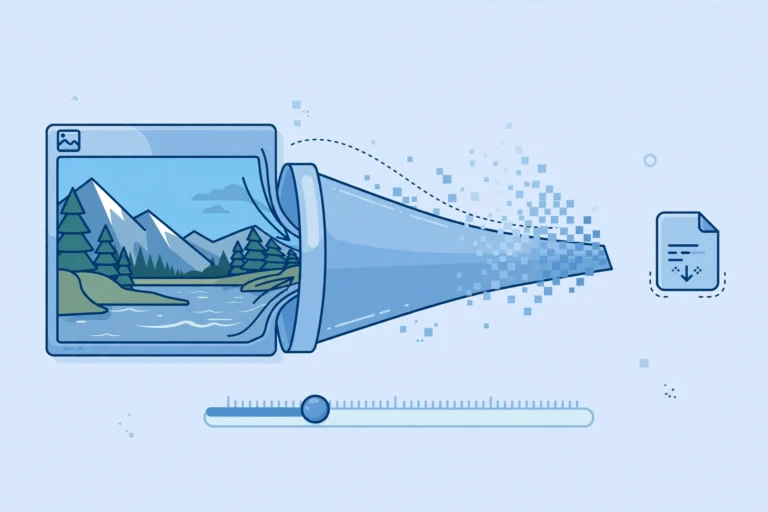
Converting WebP → JPG → WebP repeatedly degrades quality each cycle (generation loss). Convert from your original source file whenever possible, and keep the WebP as your master web copy.
Frequently asked questions
Why won’t some sites accept my WebP images? Older upload systems and software were built before WebP existed. Converting to JPG sidesteps the problem.
Will I lose quality converting WebP to JPG? Minimal — one conversion is visually negligible. Avoid converting back and forth repeatedly.
Is it free? Yes — no signup, no watermarks.
CTA: Convert now — WebP to JPG or WebP to PNG.