How to Resize and Crop Images Online (Free)
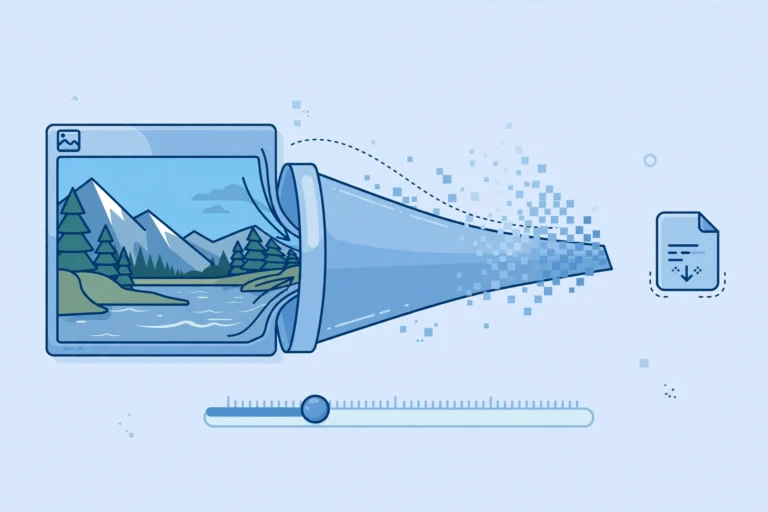
Resize images in 3 steps
- Upload — drop your image into the image resizer.
- Set dimensions — enter width/height in pixels, or scale by percentage. Lock aspect ratio to avoid stretching.
- Download — your resized image, ready to use.
Common resize targets
- Blog/website images: 1200–1600 px wide is plenty for most layouts.
- Instagram: 1080 × 1080 (square), 1080 × 1350 (portrait).
- Email signatures: under 300 px wide.
- Thumbnails: 300–400 px wide.
Crop images in 3 steps
- Upload to the crop tool.
- Drag the crop box — or enter exact dimensions for precise crops.
- Download the cropped result.
Cropping is also the fastest way to remove unwanted edges or distractions before sharing.
After editing: optimize for web
Resized images should still be compressed before uploading. Run them through the image compressor — or convert to WebP — for the smallest possible files.
Frequently asked questions
Will resizing reduce quality? Shrinking an image is safe. Enlarging beyond the original size can look soft — start from the largest source you have.
Can I resize multiple images at once? The resizer handles images one at a time for precise control; the bulk converter covers batch format conversion.
Is it free? Yes — no signup, no watermarks.