How to Compress Images Without Losing Quality: 7 Methods That Work
Images are usually the heaviest part of any web page — and the easiest to fix. These 7 methods shrink image file sizes by 50–80% with no visible quality loss, and most take seconds each.

Why image compression matters
The average web page now ships over 1 MB of images. Heavy images slow down your Largest Contentful Paint (LCP) — one of Google’s Core Web Vitals and a confirmed ranking factor — and every extra second of load time increases bounce rates. On mobile, where most traffic now comes from, the penalty is even harsher.
The good news: unlike most performance work, image compression has an almost absurd return on effort. A few minutes of work routinely cuts page weight in half.
Method 1: Choose the right format first
Format choice dwarfs every other optimization. A photo saved as PNG can be 10x larger than the same photo as WebP. Before touching any compressor, make sure you’re in a modern format:
- Photos → WebP (or AVIF for maximum savings)
- Graphics with transparency → WebP lossless or PNG
- Legacy compatibility → JPG
Converting a JPG to WebP alone typically saves 25–35% with zero visible change. Read our full WebP vs JPG vs PNG vs AVIF comparison if you’re unsure which to pick.
Method 2: Resize to the display size
This is the single most common mistake: uploading a 4000px-wide photo straight from a camera into an 800px-wide blog layout. The browser downloads all 4000 pixels and displays 800 of them.
Rule of thumb: resize images to the largest size they’ll actually be displayed at, plus a little headroom for retina screens (2x the CSS size is plenty). A 4000px → 1600px resize alone can cut file size by 70%+. Use our free image resizer — it takes seconds.
Method 3: Find your quality sweet spot
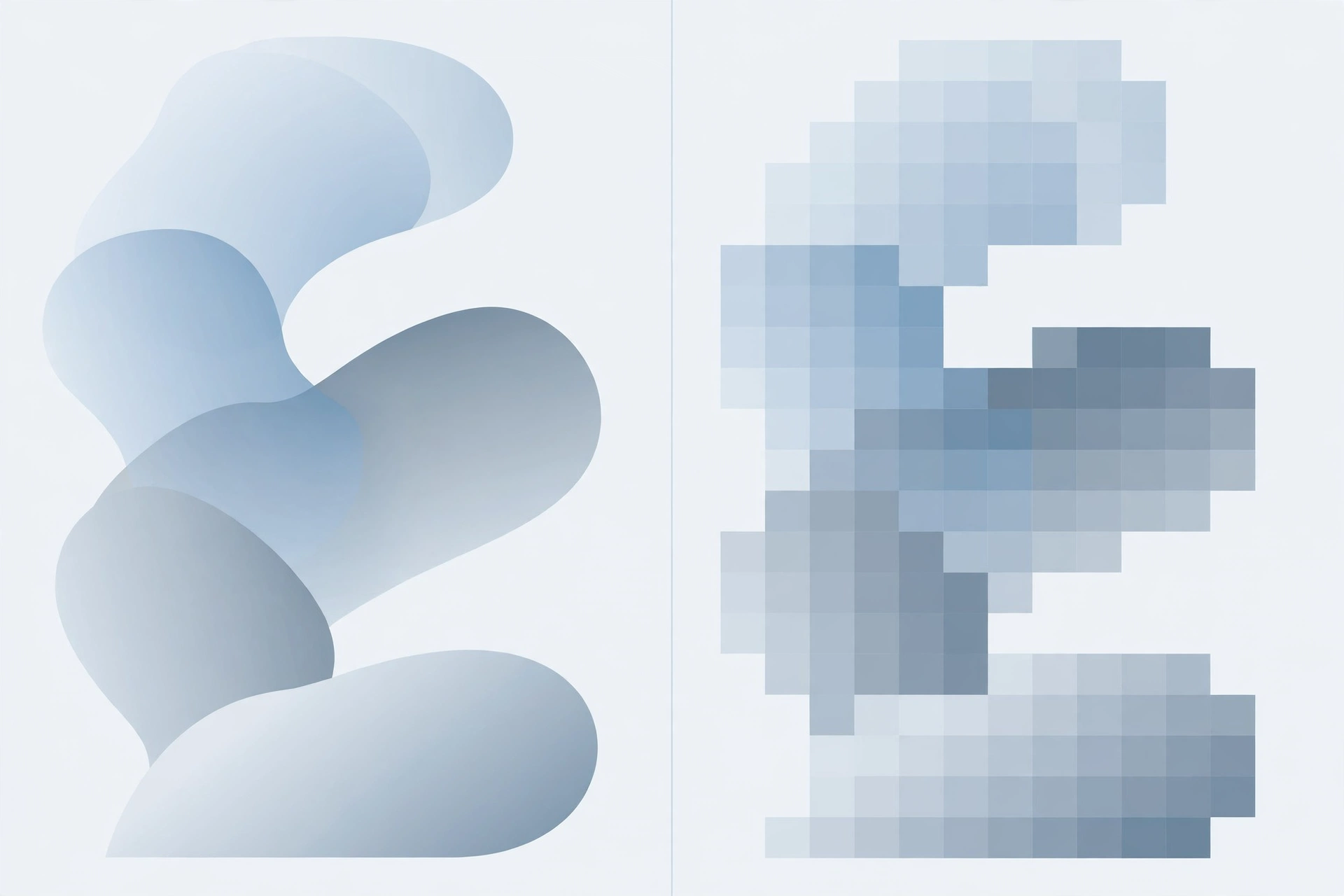
For JPG and WebP, the quality slider is where the magic happens — and most people leave it far too high. Quality 90+ is visually identical to quality 80 for web viewing, but can double the file size.
Starting points that work for almost everything:
- JPG: quality 75–82
- WebP: quality 75–80
- AVIF: quality 55–65 (its scale runs lower)
Export at 80, zoom to 100%, and look closely. If you can’t see artifacts, try 75. Stop when you first notice degradation, then step back up slightly. Our image compressor lets you preview the result before downloading.
Method 4: Match compression type to content
Lossy compression (JPG, WebP lossy, AVIF) throws away data humans can’t easily see — ideal for photographs with their smooth gradients. Lossless compression (PNG, WebP lossless) preserves every pixel — necessary for logos, text and sharp graphics, wasteful for photos.
Using lossy on a logo gives you blurry edges; using lossless on a photo gives you a 5 MB file. Match the method to the content and you get the best of both.
Method 5: Strip the metadata
Photos carry EXIF metadata: camera model, GPS coordinates, thumbnails, color profiles. This invisible data can add 10–100 KB per image — and the GPS part is a privacy leak if you’re uploading personal photos.
Most good compressors strip EXIF automatically during processing (ours does). If yours doesn’t, look for a “remove metadata” option before publishing.
Method 6: Serve responsive images
One file doesn’t fit all screens. A phone on 4G shouldn’t download the same 2000px image as a 4K desktop. HTML’s srcset attribute lets the browser pick the right size. WordPress generates these automatically for uploads. If you’re hand-coding, it’s 30 seconds of markup for a large mobile saving.
Method 7: Compress in bulk, not one by one
Optimizing a 200-image media library one file at a time is how compression projects die. Batch tools exist for a reason: our free compressor handles up to 10 images at once (more on Pro plans), and you can download everything as a single ZIP. Set aside 20 minutes, run your whole uploads folder through once, and you’re done for months.
How much can you realistically save?
For a typical unoptimized site, working through methods 1–3 alone usually cuts total image weight by 60–80%. A 3 MB homepage becomes 700 KB. That routinely moves LCP from “needs improvement” to “good” — which is both a ranking factor and a conversion factor.
Try it free right now
The fastest way to feel the difference: take your heaviest page image and run it through our free image compressor. No signup, pick your quality, download — compare the before and after. Most people are shocked at how much smaller the file gets with no visible change.
Need a different format first? Our image converter handles JPG, PNG, WebP, AVIF, GIF and BMP in bulk.
Frequently asked questions
Does compressing images reduce quality?
Lossy compression discards some data, but at sensible settings (quality ~80 for WebP/JPG) the difference is invisible to the human eye. The trick is finding the sweet spot — not maxing the slider.
What’s the best image format for websites in 2026?
WebP for almost everything; AVIF when you want maximum compression; PNG only for logos and graphics needing lossless quality. See our full format comparison.
How do I compress images in bulk?
Use a batch tool rather than doing them one at a time — our free compressor processes up to 10 images per batch with a single ZIP download.
Will compressed images help my Google rankings?
Yes, indirectly but meaningfully: smaller images improve Largest Contentful Paint, a Core Web Vitals metric Google uses in ranking. Faster pages also bounce less, which compounds the benefit.